



How to Create Website Mockups People Actually Love
Learn how to create website mockups that bridge the gap between idea and reality. Our guide covers tools, principles, and developer handoff.
EXAMPLES
Build beautiful websites like these in minutes
Use Alpha to create, publish, and manage a fully functional website with ease.
Creating a subdomain is a surprisingly simple process. It really just boils down to adding a new DNS record, which you can usually do right from your web hosting control panel or your domain registrar’s dashboard. This one action adds a prefix to your domain—think blog.yourwebsite.com—and just like that, you've carved out a new, distinct section of your site.
Why and When Should You Use a Subdomain?
Before you jump into creating a subdomain, it’s worth taking a moment to understand the strategy behind it. I like to think of a main domain (yourwebsite.com) as a house. A subdomain is like building a separate guest house on the same property. It shares the same land (your brand) but has its own entrance, structure, and purpose. That separation is its biggest advantage.
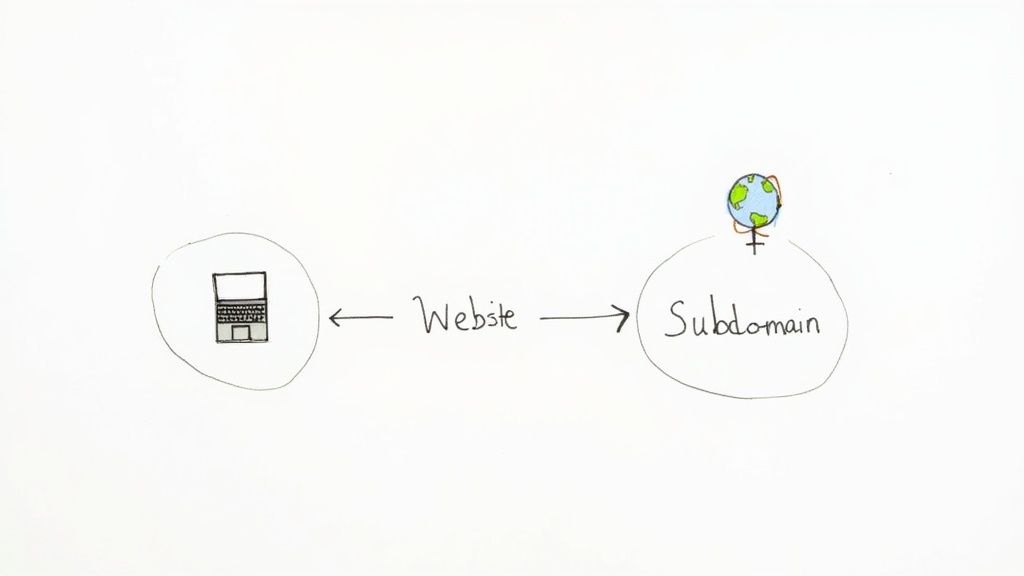
This idea isn't new. It's built right into the hierarchical structure of the Domain Name System (DNS) that has organized the internet since the 1980s. A subdomain is just an extension of your primary domain within that system. This setup is incredibly efficient, letting businesses expand their digital footprint without having to buy new domains—a key reason why we see about 4-5 million new domain registrations every year.
Common Scenarios for Subdomains
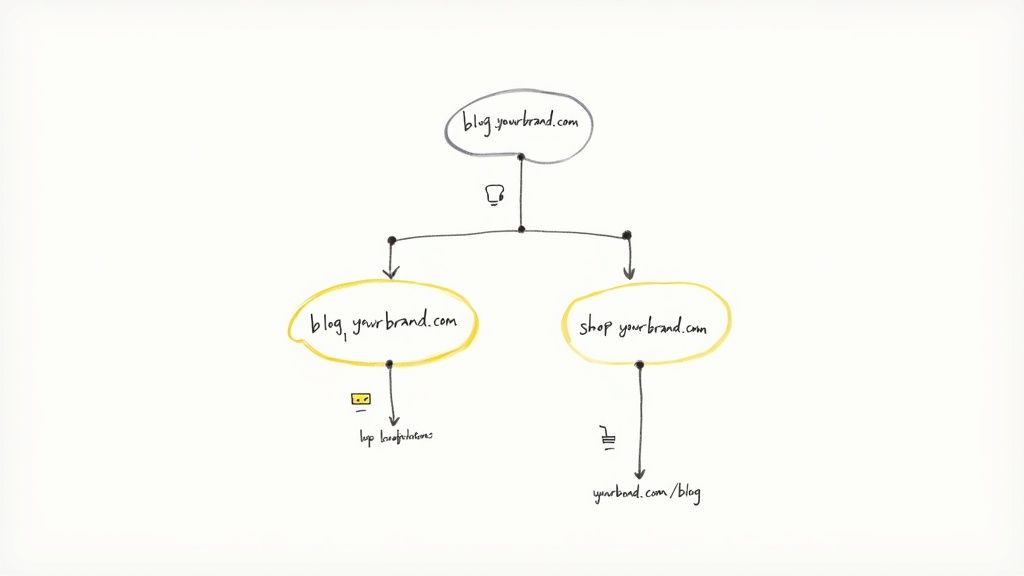
The versatility of subdomains is what makes them so useful. They’re the perfect tool when you need to logically separate a part of your website that serves a different function or speaks to a totally different audience than your main site.
Here are a few real-world examples I see all the time:
A Content Hub or Blog: Using
blog.yourwebsite.comgives your content marketing a dedicated home. It can have a completely different design and navigation without cluttering up your main corporate site.An E-commerce Store: If your primary site is informational,
shop.yourwebsite.comis a great way to house your entire retail operation. You could even run it on a separate platform like Shopify while keeping your branding consistent.A Support Portal: A dedicated
help.yourwebsite.comorsupport.yourwebsite.comcreates a focused environment for customers looking for documentation, tutorials, or direct assistance.Client or User-Specific Portals: Many businesses use subdomains like
client.yourcompany.comto give individual users a private, sandboxed area to log into.
For those dealing with more complex, distributed systems, looking into microservices architecture design patterns can offer even more insight into how subdomains play a role in sophisticated setups.
Key Takeaway: The bottom line is this: use a subdomain when you want to create a distinct web property that's still branded under your main domain but functions as its own separate entity. It’s ideal for content that has a different purpose, requires different technology, or targets a unique audience segment.
Subdomains vs Subdirectories for SEO
One of the biggest debates in the web world is whether to use a subdomain (blog.yoursite.com) or a subdirectory (yoursite.com/blog). This is a crucial decision, as it directly impacts your SEO.
The choice often comes down to how search engines view each structure. Here's a quick table to break down the key differences to help you decide what's right for your goals.
Subdomains vs Subdirectories Key Differences
Aspect | Subdomain (e.g., blog.example.com) | Subdirectory (e.g., example.com/blog) |
|---|---|---|
SEO Authority | Treated as a separate site; authority is not automatically shared with the root domain. | Seen as part of the main site; authority is consolidated with the root domain. |
Branding & Purpose | Ideal for distinct content or functionality that needs separation. | Best for closely related content that supports the main site's purpose. |
Technical Setup | Requires DNS configuration (A, AAAA, or CNAME records). | Managed within the website's file structure; no DNS changes needed. |
Hosting | Can be hosted on a completely different server or platform. | Must be hosted on the same server as the main website. |
Best For | E-commerce stores, support portals, regional sites, or distinct blogs. | Blogs, resource sections, and other content directly tied to the core offering. |
In short, search engines generally treat subdomains as separate websites. This means they don't automatically share the SEO authority your root domain has worked hard to build. A subdirectory, on the other hand, is seen as part of the main site, so all that authority gets consolidated.
If your primary goal is to build the SEO power of your core domain, a subdirectory is often the smarter move. However, if the content on your subdomain is distinct enough to rank on its own merits, that separation can actually be an advantage. To get a better handle on this, you can learn more about how search engines work in our guide on what is search engine optimization. It's a critical decision, so make sure to weigh your goals carefully before you move forward.
Your Pre-Launch Checklist
Before we get into the nuts and bolts of creating your subdomain, let's take a moment to get our ducks in a row. A little prep work now saves a lot of headaches later. Think of this as your pre-flight check—it makes the whole process smoother.
First things first: you'll need your keys to the kingdom. Go find your login details for your web hosting control panel (like cPanel or Plesk) or your domain registrar. This is where all the action happens, so having your username and password handy is a must.
Choosing a Strategic Subdomain Name
With your login info ready, it's time to think about the name itself. Your subdomain isn't just a technical address; it's a signpost for your visitors and a small but important piece of your brand. It tells people exactly what they're getting into.
Simple, direct names like blog or shop are fantastic because they're crystal clear. But you can also use subdomains for more targeted efforts. Imagine running a special promotion—you could set up fall-promo.yourbrand.com to keep that campaign's content separate from your main site.
Here are a few quick tips I've picked up over the years for choosing a solid name:
Keep it short and sweet. A name like
storeis way easier for someone to type and remember thanonlineshoppingportal.Be relevant. The name should immediately signal the purpose of that section. For instance,
support.yourbrand.comleaves no room for confusion.Skip the jargon. Stick with simple words people actually use. Hyphens are fine (
special-offer), but try to avoid underscores or other symbols that can trip people up.
A well-chosen subdomain name acts like a signpost for your users, guiding them to the right content and reinforcing what they can expect to find there. It’s a small detail that has a big impact on user experience.
Final Technical Considerations
Lastly, let's figure out where your DNS records are managed. Are they with the company where you bought your domain (your registrar), or are they handled by your web host? This is a critical piece of the puzzle, especially if you end up configuring things manually. If this concept is new to you, our guide on what is domain name registration is a great resource for understanding how it all fits together.
Your prep work should also include a quick look at your hosting setup. Not all hosts are created equal when it comes to managing subdomains, so choosing the right web host from the start can make your life a lot easier.
Once you have these pieces in place, you're officially ready for takeoff.
Setting Up Your Subdomain in cPanel
Alright, with your plan and login details handy, it's time to actually create your subdomain. For the vast majority of websites out there, the command center for this is cPanel. It’s the dashboard most hosting providers give you, so getting comfortable with it is a great skill to have.
The beauty of cPanel is that it takes what could be a really technical job and makes it visual. Instead of messing with configuration files, you get a clean, icon-based layout that simplifies the whole process.
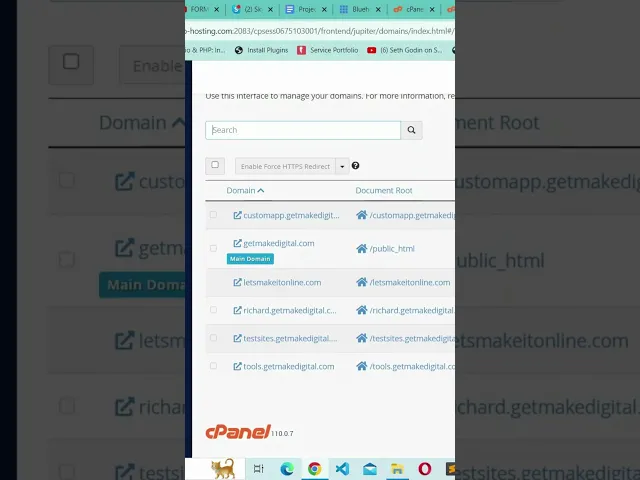
You'll know you're in the right place when you see the familiar cPanel logo. This is your gateway to managing everything on the back end of your site.
Logging in here is the first real step. Let’s jump in and see exactly what to do once you're inside.
Finding the Subdomains Tool
When you first log into cPanel, you're greeted with a dashboard packed with icons and tools. It can feel like a lot to take in, but don't worry—we only need one specific tool right now.
Scan the page for a section labeled "Domains." It's usually near the top. Within that group, you'll spot an icon for "Subdomains." That's our destination. Go ahead and click it.
If you're having trouble spotting it, just use the search bar at the top of the cPanel dashboard. Type "subdomains" and it'll filter everything out, taking you right where you need to go. It’s a huge time-saver.
Configuring Your New Subdomain
Clicking the "Subdomains" icon brings you to a straightforward creation page. This is where you'll tell cPanel what you want to build. The form is usually just three fields, and each one has a specific job.
Here’s a breakdown of what to enter:
Subdomain: This one’s easy. Just type the name you chose earlier. If you want
blog.yourwebsite.com, you simply enterbloginto this box.Domain: This is a dropdown menu. You’ll select the main domain you want to attach this new subdomain to. If you only have one domain on your hosting account, it’ll already be selected for you.
Document Root: This sounds more technical than it is. It's simply the folder on your server where the files for this new subdomain will be stored. cPanel is smart and will automatically suggest a folder based on your subdomain name, like
public_html/blog. It's almost always best to just stick with this default.
Let's imagine you're setting up an online store. You'd type shop into the Subdomain field. The Document Root would instantly update to something like public_html/shop. That new folder is now the home for all your e-commerce site's files.
My Two Cents: Before you click that "Create" button, triple-check the spelling in the "Subdomain" field. A simple typo here can cause headaches later when you're trying to figure out why your links aren't working. A little precision now saves a lot of frustration.
Once you’ve confirmed everything looks right, hit the "Create" button.
In the background, cPanel gets to work. It instantly creates the new folder (your Document Root) and, just as importantly, adds the necessary DNS record so the internet knows where to find your new subdomain.
You should see a success message pop up in just a few seconds. And that's it! The foundation for your new site section is officially in place. You now know how to create a subdomain right from your hosting control panel.
Setting Up Your Subdomain with Manual DNS Records
Sometimes, the one-click solutions in a control panel just don't cut it. You might need more granular control, especially if your domain registrar handles your DNS or if you're trying to connect a subdomain to a third-party service like Shopify or HubSpot. This is where you need to roll up your sleeves and work directly with DNS records.
Think of DNS records as the internet's address book. When someone types blog.yourwebsite.com into their browser, a DNS record tells them exactly which server is hosting that content. Creating a subdomain manually just means you're adding a new entry to that address book yourself. It’s the ultimate way to get precise control over where your traffic goes.
This infographic breaks down the manual process into the three main actions you'll take inside your domain registrar’s dashboard.
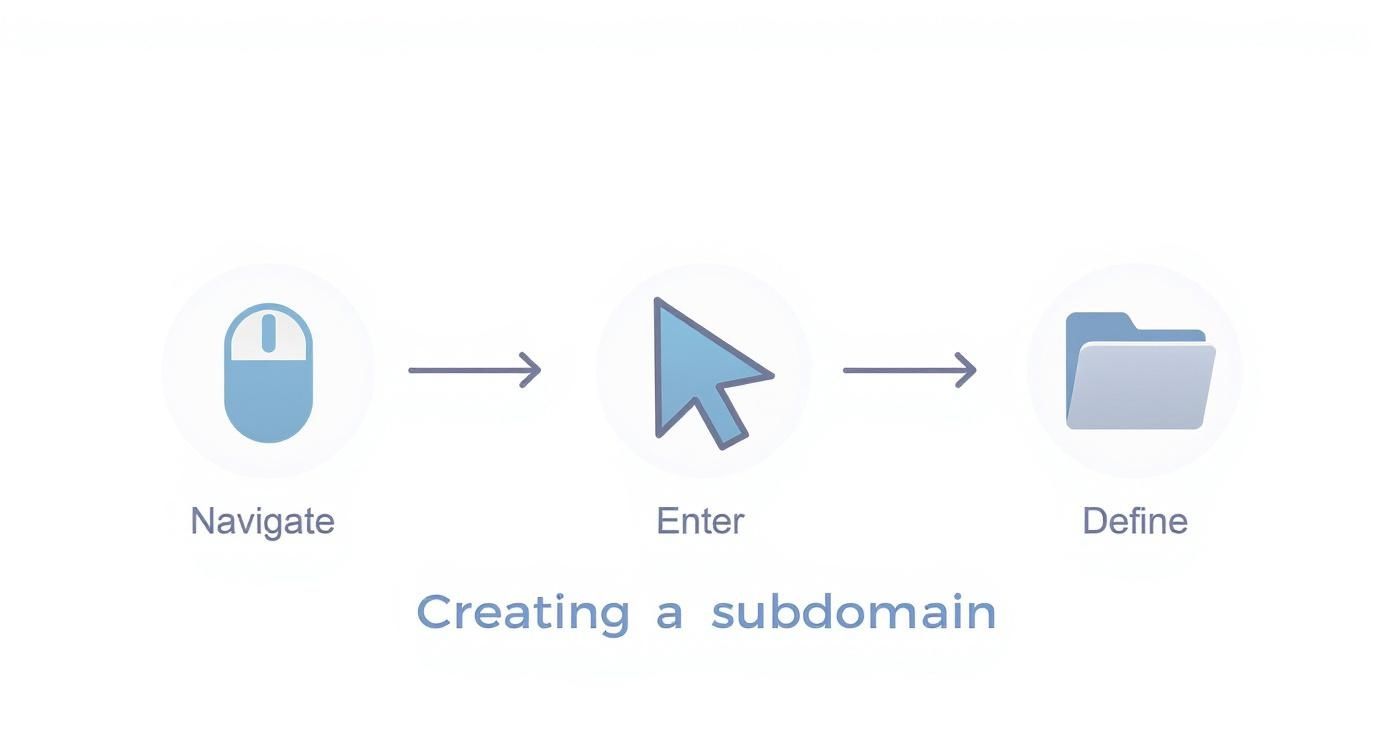
As you can see, it really boils down to finding your DNS settings, adding the right kind of record, and telling it where to point.
A Records vs. CNAME Records: What's the Difference?
When you set up a subdomain by hand, you'll almost always use one of two record types: an A record or a CNAME record. Picking the right one is absolutely critical for getting things to work correctly.
An A record, which stands for Address Record, points your subdomain directly to a server's specific IP address. It’s the most direct connection you can make.
On the other hand, a CNAME record (or Canonical Name Record) points a subdomain to another domain name instead of an IP address. Think of it as creating an alias.
So, how do you decide which one to use?
Use an A Record when: You have a static IP address for the server where your subdomain content lives. For instance, you’d use an A record to point
shop.yourbrand.comto a dedicated e-commerce server with a known IP.Use a CNAME Record when: You need to connect your subdomain to a third-party service that manages the IP address on its end. A classic example is pointing
blog.yourbrand.comto a platform like HubSpot, which might change its server IPs without notice.
My Pro Tip: When in doubt, always check the documentation for the service you're connecting to. Platforms like Shopify, Squarespace, or other web apps will almost always tell you exactly which record type to use and what value to enter. Following their instructions is the fastest way to get it right the first time.
Creating the DNS Record Step-by-Step
The exact interface will look a bit different depending on your domain registrar—whether you use GoDaddy, Namecheap, or Google Domains—but the fundamental process is always the same.
First, you’ll need to find your DNS management zone. Log into your domain registrar's account and look for a section labeled "DNS Management," "Zone Editor," or something along those lines.
Next, you'll add a new record. Look for a button that says "Add Record," "Create Record," or just a simple "+" icon. This will open up a form with a few fields.
Let's walk through a real-world scenario. Imagine you want to create help.yourbrand.com and point it to a third-party support platform. The platform's instructions tell you to create a CNAME record that points to support.serviceprovider.com.
Here’s how you'd fill out the fields:
Type: Select
CNAMEfrom the dropdown menu.Host/Name: This is where you enter your subdomain. You’d just type
help. Your registrar automatically adds the.yourbrand.compart for you.Value/Points to: Here, you'll enter the target domain provided by the service, which in our example is
support.serviceprovider.com.TTL (Time To Live): You can almost always leave this at the default setting. It’s often 1 hour or set to "Automatic."
Once the details are in, just save your new record. That’s all there is to it! You’ve just manually created a subdomain by adding a DNS record.
Finalizing Your Subdomain Setup
Alright, you’ve done the heavy lifting. The DNS records are set, and your subdomain technically exists on the internet. But think of it like building a house—the frame is up, but nobody can live in it yet. These next steps are what turn that empty structure into a functional, secure, and professional part of your website.
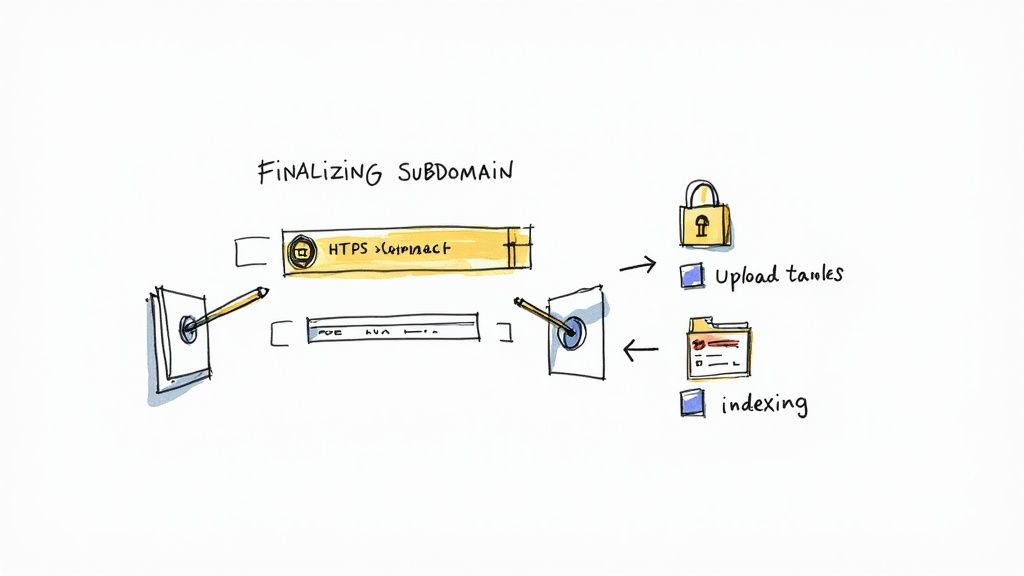
First things first: security. An SSL certificate isn't just a nice-to-have anymore; it's essential. This is what enables HTTPS and gives your visitors that little padlock icon in their browser's address bar. Without it, browsers will flag your site as "Not Secure," which is the fastest way to lose a visitor's trust before they even see your content.
Thankfully, most good hosting providers offer free SSL certificates (like Let's Encrypt) and often make installation a simple one-click affair right from your control panel. Don't put this off.
Getting Your Content Online
With your new subdomain locked down and secure, it's time to actually put something on it. Whether it’s a new blog, a customer support area, or a separate online store, you need to get your website's files into the right place. You've generally got two common paths for this.
Using a File Manager: Your hosting control panel (like cPanel or Plesk) almost always includes a web-based File Manager. It’s perfect for uploading a few files here and there or making a quick edit. You just navigate to the folder you created for the subdomain and upload directly.
Using an FTP Client: For a full site upload or if you'll be managing lots of files regularly, a dedicated FTP (File Transfer Protocol) client is the way to go. A tool like FileZilla lets you connect to your server and drag-and-drop entire folders from your computer, which is much more efficient for big jobs.
Either way, you’re just moving your website files into the specific directory you assigned to the subdomain earlier. A solid grasp of your hosting setup makes this a breeze. If you're a bit fuzzy on the details, brushing up on what is website hosting can really clarify how all these components work together.
SEO and Indexing Considerations
Here’s a final, crucial point that’s easy to overlook: what do you want Google to do with this new subdomain? Just because it’s live doesn’t mean it should automatically be searchable. This is a strategic decision.
Key Decision: Is the content on this subdomain for public consumption? A blog or a portfolio? Absolutely, let Google index it. But if it’s a private client portal, a staging site for development, or an internal knowledge base, you’ll want to keep it hidden from search results.
You can manage this by adding a "noindex" meta tag to your pages or, more broadly, by using a robots.txt file to instruct search engine crawlers to stay away. Deciding this from the start keeps your SEO strategy clean and ensures your subdomain serves its intended purpose without cluttering up your public search presence.
Creating subdomains has become incredibly straightforward, empowering website owners to organize their digital footprint effectively. This flexibility is a big reason why the domain market is so vast—it reached about 368 million registered names worldwide at the start of 2025. Subdomains are a vital, cost-free tool for managing all that online real estate. If you’re curious about the industry, you can discover more insights about domain marketing statistics here.
Answering Your Top Subdomain Questions
Great, you've got the technical steps down. But getting a subdomain live often leads to a whole new set of questions about how it all works in the real world. Let's walk through some of the most common things people ask once they've clicked "create."
"My Subdomain Isn't Working Yet. How Long Does It Take?"
This is, without a doubt, the number one question I get. You've set everything up correctly in your control panel, but when you visit the new address, you see an error. Don't panic!
This delay is completely normal. It’s caused by something called DNS propagation, which is just a fancy term for the time it takes for servers all over the world to learn about your new subdomain. Think of it like sending out a change-of-address notification to the entire internet.
Most of the time, you'll see your subdomain pop up within a few hours. However, it can sometimes take up to 48 hours to be visible everywhere. If you're past the two-day mark and still nothing, that's when it’s time to double-check your settings or get in touch with your hosting support.
"Will This Help or Hurt My Main Site's SEO?"
This is a huge topic, and the short answer is: it's complicated. Search engines, especially Google, typically see a subdomain as a separate website from your main domain.
What does that mean for you? Well, the authority and backlinks you've worked so hard to build for yourbrand.com won't automatically transfer over to blog.yourbrand.com. This can be a good thing if your subdomain's content is totally different and you want it to stand on its own. But if the content is closely related—like a blog for your main business—you're often better off using a subdirectory (yourbrand.com/blog) to keep all that SEO juice under one roof.
"Can I Make a Subdomain of a Subdomain?"
You sure can! It's called a multi-level subdomain, and it would look something like staging.projects.yourbrand.com. The process is pretty much the same—you just add another DNS record.
But just because you can, doesn't always mean you should. This kind of structure is usually only necessary for really complex setups, like a massive corporation organizing different development teams. For most people, a single subdomain is far simpler and easier to keep track of.
Expert Insight: Before you dive into creating multi-level subdomains, take a step back and ask if you truly need that complexity. A simpler site structure is almost always easier to manage and less likely to cause headaches down the road.
"Is There a Limit on How Many Subdomains I Can Create?"
Technically, the global Domain Name System (DNS) doesn't care how many you make. The real limit is set by your hosting provider.
Most hosting plans are pretty generous. You’ll often see limits ranging from 25 to completely unlimited, especially on higher-tier plans. The best thing to do is just take a quick look at the features listed in your hosting package. That way, you'll know exactly what you're working with before you start mapping out dozens of new projects.
Ready to build a stunning website without the hassle? Alpha uses AI to turn your ideas into a reality in hours, not weeks. Just drop in a URL of a site you admire, and our AI will use it as inspiration to design a beautiful, responsive website for you.
EXAMPLES
Build beautiful websites like these in minutes
Use Alpha to create, publish, and manage a fully functional website with ease.