




How to Create Website Mockups People Actually Love
Learn how to create website mockups that bridge the gap between idea and reality. Our guide covers tools, principles, and developer handoff.
EXAMPLES
Build beautiful websites like these in minutes
Use Alpha to create, publish, and manage a fully functional website with ease.
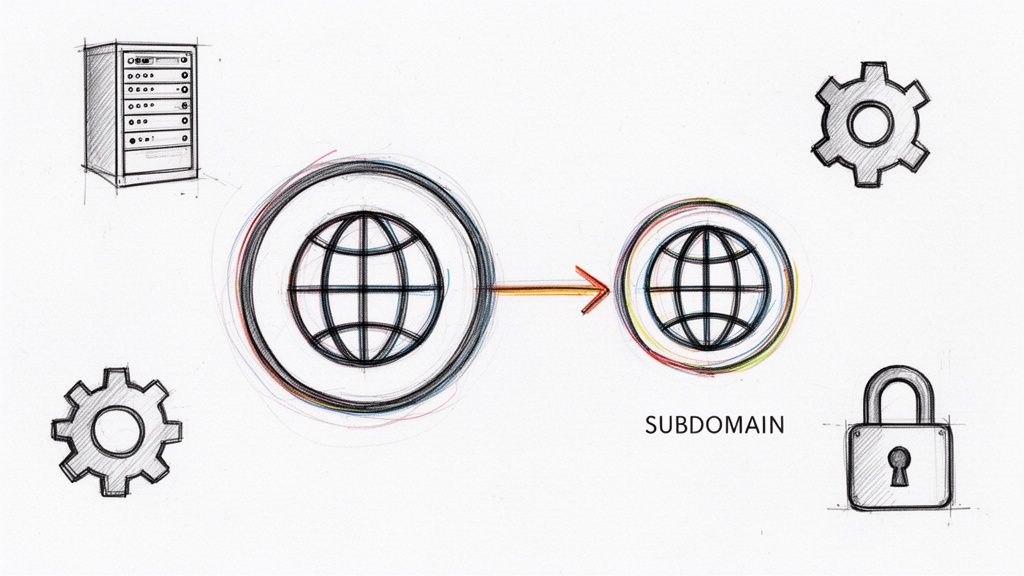
First things first, let's demystify what a subdomain actually is. At its core, creating a subdomain involves two main actions: choosing a prefix (like 'blog' or 'shop') in your hosting account and then setting up a corresponding DNS record (usually an A or CNAME record) where you manage your domain.
The result is a new, partitioned section of your website, like blog.yourbrand.com, that acts independently from your main site.
What Is a Subdomain and Why Should You Use One
Imagine your main domain (yourbrand.com) is your primary residence. A subdomain, then, is like building a separate, fully functional guest house on the same plot of land. It shares the same property (your core domain name) but has its own unique address, like blog.yourbrand.com or shop.yourbrand.com.
This isn't just a bit of technical jargon; it's a smart way to organize your entire online presence.
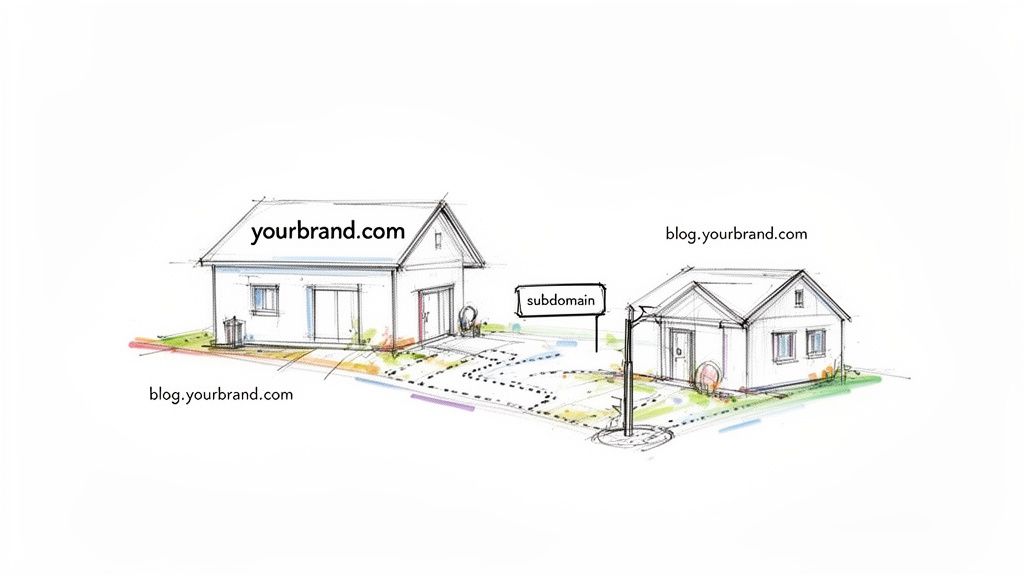
This separation lets you host completely different content or applications without making your main site a cluttered mess. Each subdomain can have its own look, feel, and even run on a different platform, giving you the flexibility to create specialized experiences for your audience.
The Strategic Value of Subdomains
You see this strategy in action all the time with major brands. Ever visited support.google.com or shop.spotify.com? They take you straight to a dedicated help center or merchandise store, respectively. This kind of clean organization offers some powerful advantages for any business.
By creating these dedicated online spaces, you can:
Improve User Experience: Visitors looking for your blog or support guides can get there directly, no need to hunt through your main site's navigation. It’s a fast-track to what they need.
Organize Your Website: Keep specialized functions—like a members-only area, an e-commerce store, or a private staging site for development—neatly cordoned off from your primary marketing website.
Target Niche SEO: Search engines tend to view each subdomain as a distinct, though related, entity. This lets you optimize each section for very specific keywords and audiences. For instance, you can fine-tune
blog.yourbrand.comfor content-driven search queries without diluting the focus of your main site.
Key Takeaway: A subdomain provides structure. It clearly signals to both users and search engines that a specific part of your website has a unique purpose, making your entire digital ecosystem much easier to manage and navigate.
Real-World Use Cases for Entrepreneurs
Knowing how to set one up is great, but understanding why is what makes the subdomain a truly valuable tool in your arsenal. Let's look at a few common scenarios where a subdomain is the perfect fit.
A SaaS company might use app.yourbrand.com for its actual software platform, keeping the user login experience totally separate from the marketing content on www.yourbrand.com.
Another great example is an e-commerce brand that runs its main storefront on a platform like Shopify but wants a more robust content marketing engine. They could easily set up a WordPress blog on blog.yourbrand.com to get the best of both worlds.
Thinking about how subdomains fit into your site's overall structure is a critical piece of the puzzle for both SEO and user experience. To really get this right, you need a solid plan. For a deeper look into organizing your site content effectively, check out this guide: SEO Engineering Information Architecture: A Blueprint for Site Navigation. It's all about making sure every part of your site works together to achieve your goals.
Choosing a Smart Name for Your Subdomain
Picking a name for your subdomain is more than just a technical step—it's your first chance to tell users and search engines what a specific section of your site is all about. A good name is intuitive, easy to remember, and clearly signals its purpose. Think of it as digital signage for your website.
A well-chosen subdomain acts as a mental shortcut. For instance, blog.yourbrand.com tells visitors exactly what to expect. Something clunky like articles-and-updates.yourbrand.com is not only a mouthful but also much harder to recall. The goal is always clarity and conciseness.
Principles of Effective Subdomain Naming
When you're brainstorming names, let clarity be your guide. Your subdomain is an extension of your primary brand, and its name should reflect a specific, distinct function. This not only makes things easier for your users but also helps you keep your own digital assets organized.
Here are a few core principles I always stick to:
Keep It Short and Simple: Shorter names are just plain easier to type, remember, and share. Stick to a single, powerful word like
shop,help,app, orblog.Be Descriptive: The name should instantly give away the content. A user shouldn't have to guess what
portal.yourbrand.comcontains;support.yourbrand.comleaves no room for doubt.Avoid Hyphens and Numbers: While they're technically allowed, hyphens can make a URL look a bit spammy and are a pain to communicate verbally. Sticking to letters gives you a much cleaner, more professional look.
Of course, before diving into subdomains, it helps to have a solid grasp of how domains work in the first place. For a great primer, check out our guide on what is domain name registration. It provides the foundational knowledge you’ll need to make smarter decisions about your site's overall structure.
Subdomain Naming Best Practices
To really see these principles in action, let's look at a few real-world scenarios. The difference between a strong and weak subdomain name can genuinely affect how people engage with your site. A confusing name creates friction, while a clear one builds confidence.
The table below breaks down some common business use cases, showing why a simple, direct approach almost always comes out on top.
Use Case | Good Example | Bad Example | Reasoning |
|---|---|---|---|
E-commerce Store |
|
| "Shop" is a universally understood term for commerce. The bad example is too long and clunky. |
Customer Support Portal |
|
| "Help" is short and action-oriented. The hyphenated version is awkward to type and say out loud. |
Software Application |
|
| "App" is concise and modern. The bad example is overly technical and includes a version number. |
Staging or Test Site |
|
| "Staging" is a standard industry term that developers immediately recognize. The other is generic. |
International Content |
|
| Using a standard country code (like ISO 3166-1 alpha-2) is efficient and globally understood. |
As you can see, the best subdomain names are the ones that eliminate ambiguity and make the user’s journey smoother. They feel like a natural part of your brand's vocabulary.
Pro Tip: Before you commit to a name, say it out loud. If it’s awkward to pronounce or you have to spell it out for someone over the phone, it’s probably too complicated. Simplicity is your best friend here.
The online world is growing fast, with domain registrations jumping from 368.4 million to 378.5 million in just six months. This boom shows why using subdomains is such a smart strategy for organizing a growing business. Creating shop.mystore.com, for example, carves out a dedicated space that can still benefit from your main domain's authority, often helping it rank faster in search results.
While the average subdomain name is 11-13 characters long, shorter is always better for user recall. Manual setup can be a hassle, but platforms like Alpha are designed to simplify this, embedding subdomain support with automatic SEO and mobile optimization. It turns what used to be a complex technical task into just a few clicks.
Bringing Your Subdomain to Life: A Practical Guide
With a name picked out, it's time to roll up our sleeves and actually create the subdomain. Don't worry, this part is usually pretty straightforward. While every hosting provider's dashboard looks a little different, the fundamental steps are nearly identical, especially if you're using a common control panel like cPanel or Plesk.
Let's walk through the process you'll likely encounter, from logging into your hosting account to getting that "Success!" message.
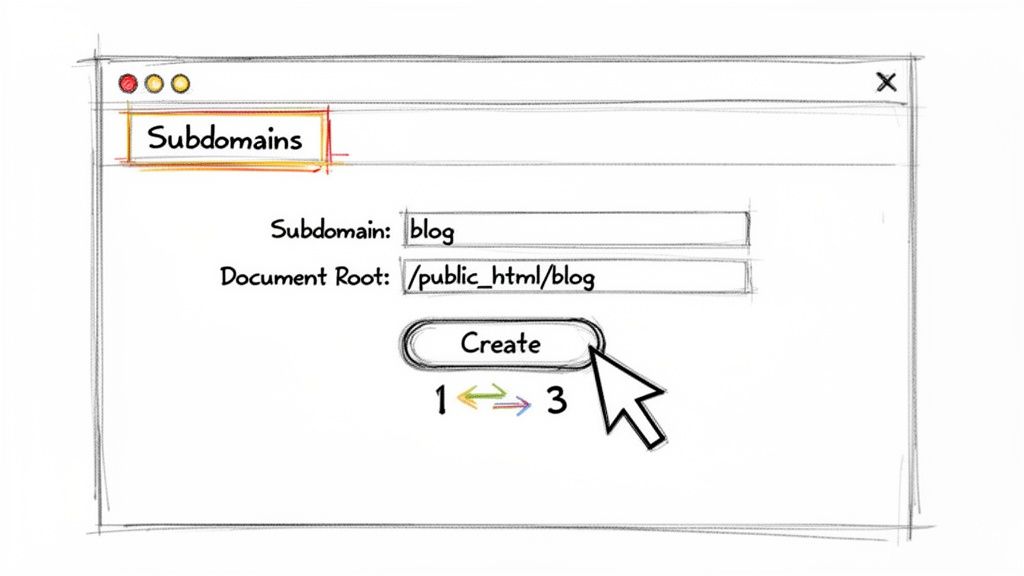
The image above is a great example of a typical creation form. As you can see, it really boils down to two key pieces of information: the subdomain name and where its files will live.
Finding the Subdomain Section in Your Hosting Panel
First, you'll need to get into your website hosting account dashboard. Once you're in, start looking for a section related to "Domains". This is the hub for everything related to your domain names.
Within that section, you're hunting for a link or button that says "Subdomains." That's your destination. Clicking it will take you right to the tool for adding and managing them.
Defining the Subdomain Name and Its Home Folder
You'll see a simple form waiting for you. This is where the magic happens.
There are just two fields you need to worry about:
Subdomain: Just type the name you chose earlier. If you want
blog.yourbrand.com, you'll simply enterblog. The system automatically tacks on the.yourbrand.compart for you.Document Root: This is the specific folder on your server where this new subdomain's website files will be stored. Your hosting panel will almost always suggest a default path that matches your subdomain name, something like
/public_html/blog.
My advice? Stick with the default document root. It's the cleanest way to keep your subdomain's files neatly separated from your main website's files. Messing with this is an advanced step that's rarely needed for common projects.
What's a Document Root? Think of it as the home base for your subdomain. When a visitor types
blog.yourbrand.cominto their browser, the server knows to look inside the/public_html/blogfolder to find the correct website to display. It keeps everything organized and separate.
Once those two fields are filled in, just hit the "Create" button. Your host takes it from there, creating the folder and—most importantly—automatically setting up the basic DNS records needed to get your new address working online.
Confirmation and What Comes Next
You should immediately see a confirmation message letting you know the subdomain has been created. It will likely appear in a list of all your existing subdomains on that same page.
Now, a quick heads-up: even though your server set it up instantly, it might not be live for the whole world just yet. It can take anywhere from a few minutes to a few hours for the new address to work everywhere. This delay is called DNS propagation, and it's just the time it takes for the update to spread across the internet.
With the technical part done, your subdomain is officially ready for content! Your next move is to decide what goes there—maybe you'll install a fresh copy of WordPress, upload your custom-coded project files, or point it to an entirely different service.
Alright, you’ve registered your subdomain with your domain provider. Now for the important part: getting it to actually point to your website.
If you’re using a platform like the Alpha website builder, you can breathe a sigh of relief. They’ve designed this process to sidestep the usual technical headaches you’d find in a traditional hosting panel. You won’t be digging through a confusing cPanel trying to figure things out. Instead, Alpha gives you a clear, guided path to hook up blog.yourbrand.com or shop.yourbrand.com right where it needs to go.
Think of it as a digital handshake. You’ll tell Alpha which subdomain you want to use, and in return, Alpha will hand you the exact DNS records you need. All you have to do is copy and paste them back into your registrar’s settings. Let’s walk through how it’s done.
Adding Your Subdomain in the Alpha Dashboard
First things first, log into your Alpha account and head over to your website’s settings. You’re looking for a section labeled "Domains" or "Custom Domains"—this is your command center for any web address connected to your site.
Once you're in, you should see an option to "Add an existing domain." This is where the magic starts.
Type in your full subdomain, for example,
blog.yourbrand.com.Hit "Connect" (or whatever the button says) to move forward.
Alpha will immediately get to work and generate the specific DNS records required to link your subdomain to its servers.
This is a huge advantage. There’s no guesswork here. Alpha tells you exactly what you need—whether it’s an A record or a CNAME record—along with the precise values to plug in.
Updating DNS Records at Your Registrar
With those new records copied, it’s time to pop back over to your domain registrar—wherever you originally bought your domain, like GoDaddy, Namecheap, or Google Domains. Log in and navigate to the DNS management section for your main domain.
You’ll be looking for a button like "Add a new record." From there, it's just a matter of filling in the blanks:
Record Type: Choose the type Alpha gave you (it’s almost always A or CNAME).
Host/Name: This is a common trip-up point. Don't enter the full subdomain. For
blog.yourbrand.com, you just need to typeblog.Value/Points To: This is where you’ll paste the IP address (for an A record) or the target URL (for a CNAME) that Alpha provided.
TTL (Time To Live): You can almost always leave this on the default setting. It's often labeled "Automatic" or "1 Hour."
Once you save that new record, the connection process officially begins. Now, a little patience is required as the changes spread across the internet. This is called DNS propagation, and it can take anywhere from a few minutes to a few hours.
Verification and Final Steps in Alpha
After waiting a bit for the DNS changes to kick in, head back to your Alpha dashboard. You should see a "Verify" or "Check Connection" button. Clicking this prompts Alpha to go out and see if your DNS records are pointing correctly.
If you followed the steps, you’ll get a success message. And just like that, your subdomain is officially connected and live.
This kind of streamlined approach is a massive help for anyone who doesn’t have the time to wrestle with technical jargon. The digital world is booming, with a recent report showing a jump to 378.5 million total domain registrations in just one quarter. This huge growth shows why business owners are rushing to claim their online space, and it makes tools that simplify the process absolutely essential. You can dig into these global trends by checking out the latest quarterly domain report. Instead of getting stuck on DNS settings—a hurdle that trips up an estimated 70% of beginners—platforms like Alpha make creating a subdomain feel effortless.
Doug Roper of Talent Spring, an Alpha user, nailed it when he said: "The website format copying function is a game-changer." This really gets to the heart of it—intuitive tools let people focus on growing their business, not fighting with their tech.
By giving you clear instructions and handling the tricky parts behind the scenes, Alpha makes sure connecting your subdomain is a quick win. Now you can get back to what really matters: building out the content and experience for your new, dedicated section of your website.
Securing Your Subdomain with an SSL Certificate
You've done the hard part—your subdomain is live and pointed to the right place. But don't pop the champagne just yet. There's one final, absolutely critical step: securing it. If visitors land on your subdomain and see that dreaded "Not Secure" warning in their browser, they're likely to bounce immediately.
This isn't just about appearances, either. An SSL certificate is what puts the 's' in https and gives you that reassuring padlock icon. It’s the standard for the modern web, and without it, you're not just hurting user trust; you're also telling search engines your site isn't up to par.
What Is SSL and Why Is It Essential?
Think of an SSL (Secure Sockets Layer) certificate as a digital passport for your subdomain. It does two things really well: it proves your website's identity is legitimate, and it encrypts any data traveling between a visitor's browser and your server.
Whether it’s a login form on app.yourbrand.com or a newsletter signup on blog.yourbrand.com, SSL scrambles that information, making it unreadable to anyone trying to snoop. For your new subdomain, this is non-negotiable. It builds instant credibility and shows you take user privacy seriously.
Key Insight: Over 80% of web pages loaded by Google Chrome now use HTTPS. If your subdomain isn't secure, you're falling behind the curve and missing out on the trust that comes standard with a secure connection.
How to Get an SSL Certificate for Your Subdomain
Thankfully, the days of complex, expensive SSL installations are mostly behind us. How you get one usually depends on where your subdomain is hosted.
Here are the most common ways to get it done:
Automatic SSL with Modern Platforms: This is the dream scenario. If you're using a modern website builder like Alpha, the platform handles everything for you. As soon as your subdomain is connected and verified, an SSL certificate is automatically issued and installed. No fuss, no extra cost.
One-Click Installation in cPanel: Many traditional web hosts provide free SSL certificates through services like Let's Encrypt. You'll typically find a tool in your cPanel dashboard labeled "SSL/TLS Status." From there, you just find your new subdomain, click a button, and the system takes care of the rest.
Manual Installation: This is becoming less common, but you might run into it. This process involves generating a Certificate Signing Request (CSR) on your server, having a Certificate Authority validate it, and then manually installing the certificate files they provide.
This diagram gives a great high-level view of the process, where connecting your subdomain and setting up SSL are often the final steps after you've configured your DNS.
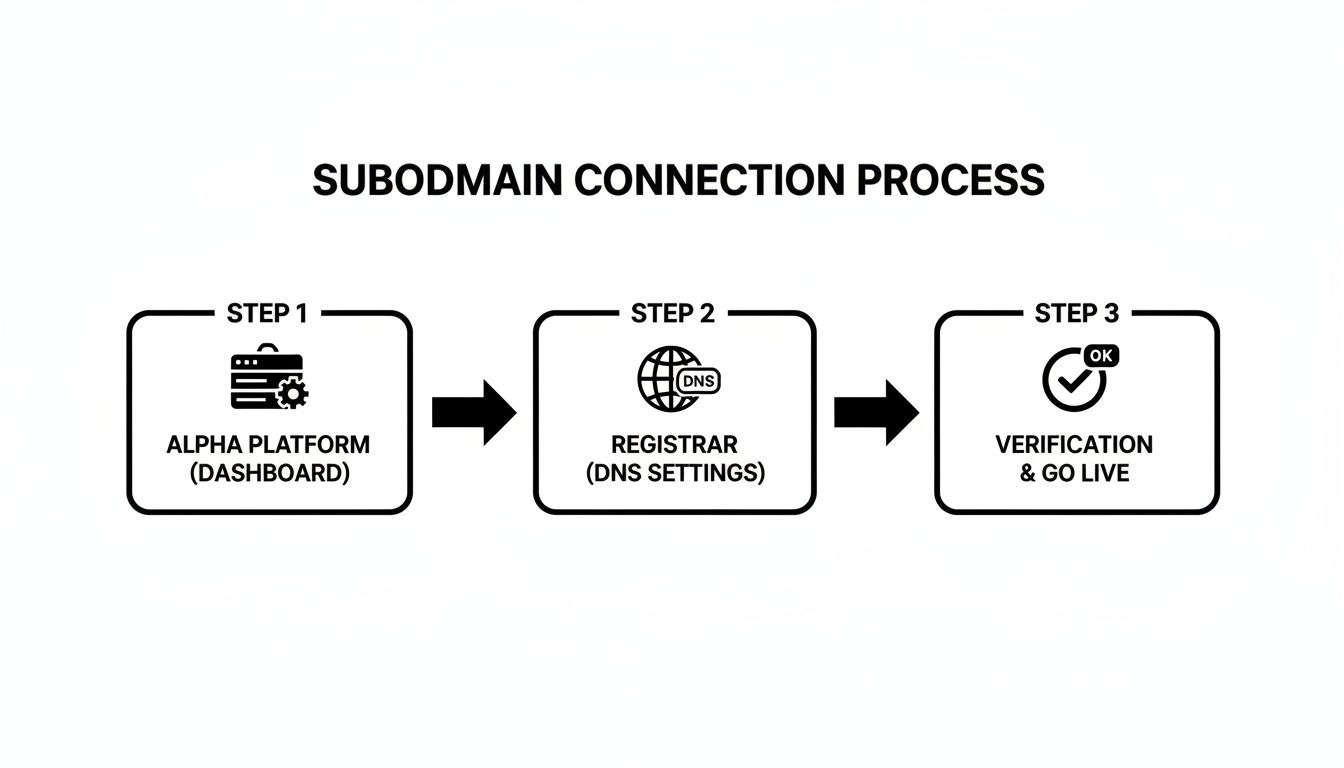
It really shows how platforms like Alpha streamline the technical parts, including security, to make the whole experience smoother.
Verifying Your SSL Installation
Once the certificate is installed, give it a quick check. The easiest way is to simply open a browser and navigate to your subdomain using https:// at the beginning (for example, https://blog.yourbrand.com). If you see the padlock and no security warnings, you’re good to go.
For a deeper dive into protecting your site beyond just SSL, our guide on website security best practices has you covered.
And if you're the type who likes to understand what's happening under the hood, The Complete Guide to SSL Certificates, DNS Records & MX Records is an excellent resource. Getting familiar with these concepts will make troubleshooting down the road a whole lot easier.
Common Subdomain Mistakes and How to Fix Them
So you've followed all the steps, but your new subdomain just isn't working. It happens to everyone. Before you start tearing your hair out, let’s walk through the usual suspects—most of these are surprisingly common and have straightforward fixes.
The number one thing that trips people up is DNS propagation. You’ve added the new record, you’re excited to see your site, but blog.yourbrand.com just gives you a nasty error. Don't panic. It's almost certainly not broken; the internet just needs a moment to catch up with your changes.
DNS updates aren't instantaneous. Think of it like a message spreading across a massive global network. This process can take a few minutes, but in some rare cases, it can stretch up to 48 hours. The best thing you can do is step away. Go grab a coffee, and check back in an hour or two. Patience is your best friend here.
Tackling 404 Errors and Misconfigurations
Okay, let's say you've waited long enough, and you're still hitting a "404 Not Found" wall. This error is actually a good sign—it means your DNS is working and browsers can find your server. The problem is that the server itself can't find the website files for that specific subdomain.
Nine times out of ten, this comes down to a problem with the document root. That's the folder path you told your server to look in when setting up the subdomain in your hosting panel.
Here’s how to troubleshoot it:
Double-Check Your Path: Go back into your hosting control panel and find the subdomain settings. Is the folder path exactly right? A single typo will send the server looking in the wrong place.
Confirm Your Files Are There: Use your hosting's file manager and navigate to that exact directory. Are your website's files, especially
index.htmlorindex.php, actually uploaded into that specific folder?Check for
.htaccessConflicts: Sometimes, a misconfigured.htaccessfile can create weird redirect loops or routing issues. A quick way to test this is to temporarily rename the file (e.g., to.htaccess-old) and see if the site loads.
A Quick Tip from Experience: Most hosting platforms automatically create a new folder for your subdomain inside the main
public_htmldirectory. Forblog.yourbrand.com, your files should almost always live in a folder like/public_html/blog, not just thrown into the mainpublic_htmlfolder with your primary site.
Navigating SSL Certificate Warnings
That dreaded "Your connection is not private" error is another classic headache. This is a dead giveaway that something is wrong with your SSL certificate. It's either missing, not set up correctly, or has expired. An unsecured subdomain looks untrustworthy and will absolutely drive visitors away.
First off, did you actually issue an SSL certificate for the subdomain? A certificate for www.yourbrand.com often doesn't automatically cover shop.yourbrand.com. You might need a specific wildcard SSL certificate (which covers all subdomains) or to issue a separate certificate for each one.
If you're using a free service like Let's Encrypt, remember that those certificates expire every 90 days. A failed auto-renewal is a very common reason for these warnings to suddenly appear. If you're using a platform like Alpha, this is all managed behind the scenes. On traditional hosting, though, you might need to log in and manually kick off the renewal.
You could also be dealing with a "mixed content" error. This is a sneaky one. It means the page itself is secure (https), but it's trying to load assets—like images or scripts—over an insecure http connection. Your browser's developer tools are your best bet for hunting down these insecure links so you can fix them.
Common Questions About Subdomains
Alright, let's wrap up by tackling a few questions that always seem to come up when you're first getting the hang of subdomains. Getting these details straight can save you a lot of guesswork down the road.
How Many Subdomains Can I Actually Create?
Technically, you can create a staggering number of them—practically unlimited. Most registrars and hosting companies don't cap how many subdomains you can create for a single domain name.
The real-world limit, though, comes down to your server's capacity and, frankly, your ability to manage everything. Spinning up hundreds of subdomains is a bad idea if you can't keep them all secure, updated, and serving a clear purpose.
Will Using a Subdomain Hurt My SEO?
Ah, the classic debate. The short answer is: it depends. Search engines like Google typically view a subdomain as a separate website from your main domain. They're related, sure, but they mostly build their own reputations and authority.
This is why you'll often hear SEO pros recommend using subfolders (yourbrand.com/blog) for content that's tightly integrated with your main site, like a blog. It helps consolidate all your ranking power onto one primary domain.
My Two Cents: Use a subdomain for a functionally separate part of your site, like
app.yourbrand.comorshop.yourbrand.com. For closely related content that should boost your main site's authority, stick with a subfolder.
Can I Put a Subdomain on a Subdomain?
You bet. It's called a nested subdomain, and it would look something like news.events.yourbrand.com.
While it's technically possible to stack them several levels deep, it's rarely a good idea. The URLs quickly become long, clunky, and confusing for your visitors. Unless you're managing an incredibly complex organization, a simple, single-level subdomain is almost always the better, cleaner choice.
Ready to build your website without the technical headaches? Alpha uses AI to create stunning, responsive websites in minutes. Just drop in a URL of a site you admire, and our AI will generate a professional layout you can customize by simply describing what you want.
EXAMPLES
Build beautiful websites like these in minutes
Use Alpha to create, publish, and manage a fully functional website with ease.