





How to Create Website Mockups People Actually Love
Learn how to create website mockups that bridge the gap between idea and reality. Our guide covers tools, principles, and developer handoff.
Build beautiful websites like these in minutes
Use Alpha to create, publish, and manage a fully functional website with ease.
Think of a 301 redirect as a permanent change of address for a webpage. It's a crucial signal that tells search engines and users, "Hey, this content isn't gone—it just moved over here for good." Getting this right is a fundamental part of solid technical SEO, ensuring you don't lose traffic or authority when you shuffle things around on your site.
Why 301 Redirects Are a Must-Do for SEO
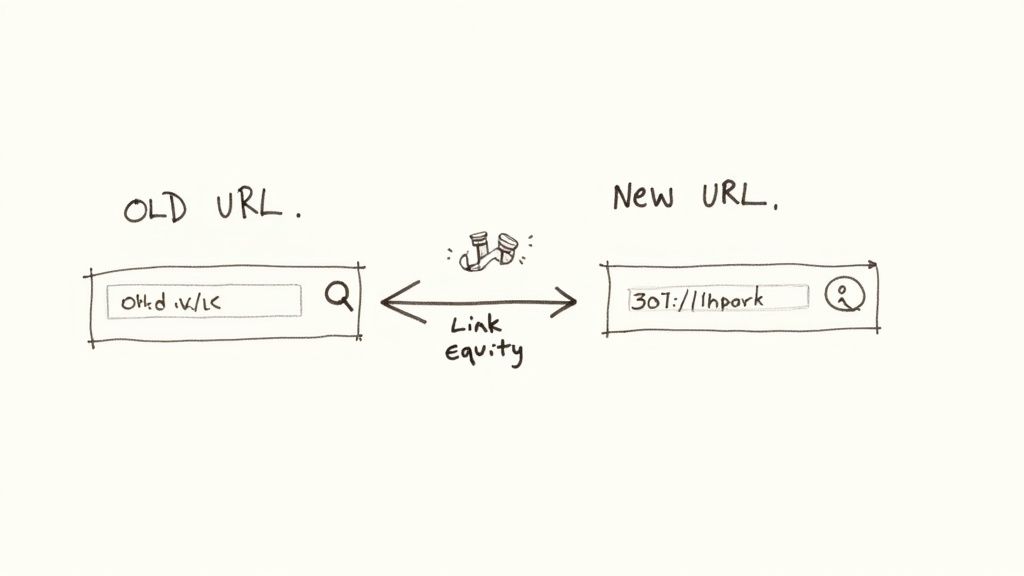
When you change a URL without a redirect, you’re not just creating a broken link. You're essentially throwing away all the authority that page has worked so hard to build. This authority, often called link equity or "link juice," is the powerful value passed on from other sites that link to your page. A 301 redirect is the plumbing that carries that value from the old URL to the new one.
If you skip this step, the consequences can be pretty grim:
You'll Lose Your Rankings: Search engines will treat the new URL like a brand-new page with no history or authority, causing your hard-won rankings to tank.
You'll Frustrate Users: Anyone clicking an old link will hit a "404 Not Found" error. That’s a surefire way to increase your bounce rate and leave a bad impression.
Your Backlinks Become Useless: All those valuable backlinks pointing to the old page are now pointing to a dead end, effectively erasing their benefit.
Hang Onto Your SEO Power
A 301 redirect is your best tool for preserving a page's ranking power. It tells search engines to pass almost all of the original page's value to its new home. Thankfully, Google confirmed years ago that PageRank isn't lost through 30x redirects, so you can confidently migrate content as long as you redirect correctly.
If you want to dig deeper into how search engines work and what makes them tick, our guide on what is search engine optimization is a great place to start.
Choosing The Right Redirect Type
It's really important to know when to use a permanent (301) redirect versus a temporary (302) one. Using the wrong one can send mixed signals to search engines and mess with your SEO.
Here’s a quick breakdown to help you decide.
301 vs 302 Redirects: When to Use Each
Attribute | 301 Permanent Redirect | 302 Temporary Redirect |
|---|---|---|
Use Case | Permanently moving a page, changing domains, or switching to HTTPS. | A/B testing a new design, running a short-term promotion, or during site maintenance. |
SEO Impact | Passes link equity and tells search engines to de-index the old URL. | Does not pass link equity; signals that the original URL will be back soon. |
Browser Caching | Browsers may cache the redirect permanently, making it difficult to reverse. | The redirect isn't cached aggressively, giving you much more flexibility. |
At the end of the day, the choice is simple. If the move is forever, use a 301. If it's just for a little while, use a 302. Getting this right is one of those small details that has a huge impact on keeping your site healthy and your rankings stable.
Of course, redirects are just one piece of the puzzle. For a broader view, check out these other essential SEO tips to keep your website performing at its best.
Getting Hands-On: 301 Redirects with Apache and .htaccess
If your website runs on an Apache server—which is incredibly common, especially with shared hosting plans—your go-to tool for managing redirects is a small but mighty file called .htaccess.
Think of .htaccess as your site's personal traffic controller. It sits in your website's main folder and lets you set specific rules for how the server should handle requests, overriding the server's global settings. It's the perfect place to tell search engines and browsers, "Hey, that old page you're looking for? It lives over here now."
First things first, you need to find this file. It’s usually located in the root directory of your website, which is often named public_html or www. Because the filename starts with a dot, it’s often hidden by default. You may need to enable "Show Hidden Files" in your file manager or FTP client to see it.
Don't Skip This: Back Up Your .htaccess File
Before you touch a single line of code, listen up. One tiny typo in your .htaccess file can take your entire website offline, greeting visitors with a scary "Internal Server Error."
This is why your first move, without exception, should be to create a backup.
Seriously. Just download the current file and rename the copy to something like .htaccess_backup. This simple step is your get-out-of-jail-free card. If something goes wrong, you can just delete the broken file, rename your backup, and your site will be back to normal in seconds.
Redirecting a Single Page
This is the bread and butter of redirects. Let's say you've refreshed an old blog post and the URL slug changed from /old-blog-post to /new-and-improved-post. If you just delete the old one, anyone with the old link hits a dead end (a 404 error), and all that valuable link juice is lost.
The fix is a clean, one-line addition to your .htaccess file.
Redirect 301 /old-page.html https://www.yourdomain.com/new-page.html
Let's quickly break that down:
Redirect 301: This tells the server to perform a permanent redirect./old-page.html: This is the path of the old page, right after your domain name.https://.../new-page.html: This is the full, absolute URL of the new page. You need the whole thing,httpsand all.
Redirecting an Entire Directory
What happens when you've reorganized a big chunk of your site? Maybe you moved your entire blog from a /blog/ folder to a new /articles/ section. Going through and redirecting every single post would be a tedious, error-prone mess.
Thankfully, there's a much smarter way. You can move the whole directory in one go.
RedirectMatch 301 ^/old-directory/(.*)$ https://www.yourdomain.com/new-directory/$1
This line uses a little bit of regular expression (RegEx) magic. The (.*) part captures everything that comes after the old directory name, and the $1 at the end plugs it right into the new URL. This ensures all your old posts automatically map to their new homes.
Forcing HTTPS Across Your Entire Site (The Non-Negotiable Rule)
In today's web, running your site over HTTPS isn't optional—it's essential for both security and SEO. If your site is accessible at both http:// and https:// addresses, search engines can see it as duplicate content, which can dilute your rankings.
You can enforce a sitewide HTTPS connection using a more advanced set of rules with Apache's mod_rewrite module.
RewriteEngine On
RewriteCond %{HTTPS} off
RewriteRule ^(.*)$ https://%{HTTP_HOST}%{REQUEST_URI} [L,R=301]
Here's what that snippet is doing:
RewriteEngine On: This line flips the switch to turn on the rewriting engine. It has to come first.RewriteCond %{HTTPS} off: This sets the condition. It tells the server to only proceed if the connection is not secure (i.e., it's on HTTP).RewriteRule ...: This is the rule that fires if the condition is met. It takes the requested URL and rebuilds it withhttps://, then issues a permanent 301 redirect.
This block of code is one of the most important things you can put in your
.htaccessfile. It funnels every visitor and search engine bot to the single, secure version of your site, consolidating your authority and keeping user data safe.
The more you understand the server environment where .htaccess lives, the more powerful it becomes. If you want to zoom out and see the bigger picture, learning more about what is website hosting can give you great context for how all these technical pieces fit together.
Setting Up 301 Redirects on Nginx
If you're coming from the world of Apache, working with Nginx can feel like a whole different ballgame. Gone are the .htaccess files you might be used to. Instead, Nginx handles redirects directly within its server configuration files, which is a cleaner, more centralized, and often faster approach.
The server doesn't have to scan every directory for a rules file on each request. Everything is handled in one place, which gives Nginx a serious performance edge.
For simple 301 redirects, your go-to tool will be the return 301 directive. It's incredibly efficient because it stops processing the request right away and sends the redirect command back to the browser. When all you need is a permanent move, this is the best tool for the job.
Finding Your Nginx Configuration File
First things first, you need to locate the right configuration file. This can sometimes vary, but you'll typically find it in /etc/nginx/nginx.conf or, more likely, within a site-specific file in the /etc/nginx/sites-available/ directory.
Look for a file named after your domain, like yourdomain.conf. Inside, you'll find a server { ... } block—this is where you'll be working. All your redirect rules will live inside this block.
Pro Tip: Before you touch a single line, make a backup. A quick
cp yourdomain.conf yourdomain.conf.bakcommand can be a lifesaver. One tiny typo in an Nginx config file can prevent the server from starting, effectively taking your entire site offline.
Redirecting a Single Page
Let's walk through a classic scenario. You've revamped a blog post, and the URL changed from /blog/old-post-title to /articles/new-post-title. You need to make sure anyone with the old link ends up in the right place.
Inside your server block, you’ll add a location block to catch the old URL.
location = /blog/old-post-title {
return 301 /articles/new-post-title;
}
The equals sign (=) is key here; it tells Nginx to look for an exact match, which is the most efficient way to handle this. As soon as a request for the old URL comes in, this rule fires, and the browser is immediately sent to the new page with a 301 status code.
Implementing a Domain-Wide Redirect
What about a broader rule, like forcing all traffic to use the non-www version of your domain? This is a fundamental SEO practice to avoid duplicate content and consolidate link equity. For this, you can set up a completely separate server block.
server { server_name www.yourdomain.com;
return 301 $scheme://yourdomain.com$request_uri;
}
This block's only job is to listen for requests hitting www.yourdomain.com. When it gets one, it immediately issues a 301 redirect to the yourdomain.com equivalent. The $request_uri variable is a neat trick that appends the original path and any query parameters, so a link to www.yourdomain.com/contact?ref=123 correctly goes to yourdomain.com/contact?ref=123.
Making Your Changes Live
Once you've added your redirect rules and saved the file, they aren't active just yet. You have to tell Nginx to load the new configuration.
Before you do, it's always a good idea to check your work for syntax errors. This quick check can prevent a lot of headaches.
sudo nginx -t
If everything is correct, you'll get a success message. If not, the output will point you to the exact file and line number causing the problem.
After you get the green light, it's time to reload Nginx.
sudo systemctl reload nginx
This command gracefully reloads the configuration without dropping any active connections, meaning there's zero downtime for your users. Just like that, your new 301 redirects are live and working.
Managing 301 Redirects on WordPress and Other Platforms
Diving into server configuration files isn't for everyone, and that’s perfectly okay. The good news is you don’t need to be a command-line wizard to handle redirects. Most modern platforms have built-in, user-friendly ways to manage these crucial SEO tasks.
This is all about putting 301 redirects to work within the platforms you’re already using. We'll cover the most popular content management systems and hosting solutions, starting with the biggest one of all: WordPress.
WordPress Redirects: Let a Plugin Do the Heavy Lifting
For the millions of us running sites on WordPress, the easiest and safest way to manage 301s is with a dedicated plugin. These tools give you a simple interface, completely removing the risk of a typo in your .htaccess file taking down your entire site. We've all been there.
Two of my go-to options are:
Redirection: A free, powerful, and long-standing plugin that does one thing and does it exceptionally well. It even logs 404 errors, making it a breeze to spot broken links and redirect them on the fly.
Rank Math or Yoast SEO: If you’re already using an all-in-one SEO suite, you might already have this covered. Rank Math includes a great redirect manager in its free version, while Yoast SEO offers it in their premium package.
No matter which plugin you use, the process is pretty much the same. You'll find a section in your dashboard to add a "source URL" (the old link) and a "target URL" (the new one), select "301" as the redirect type, and you're done. It really is that simple.
Running Redirects Through Cloudflare
If you're using Cloudflare for your CDN and DNS, you can handle redirects at the edge—before a request even hits your server. This method is incredibly fast and efficient.
It’s all done with Page Rules.
Just head to the "Rules" section in your Cloudflare dashboard and create a new Page Rule. You can set it up to match a specific URL pattern, then apply a "Forwarding URL" setting with a "301 - Permanent Redirect" status. The free plan from Cloudflare includes three Page Rules, which is usually more than enough for basic forwarding needs.
Redirects on Modern Hosting Platforms (Netlify, Vercel)
Many of the newer hosting platforms, especially those popular for static sites and Jamstack development, have their own straightforward ways of handling redirects.
Netlify: On Netlify, you just create a plain text file called
_redirectsin your project's root folder. Each line defines a rule, making them incredibly easy to manage. A basic 301 looks like this:/old-path /new-path 301.Vercel: With Vercel, you'll use a
vercel.jsonconfiguration file. Inside, you add aredirectsarray to define your rules. This approach is great because it keeps your redirects version-controlled right alongside your codebase.
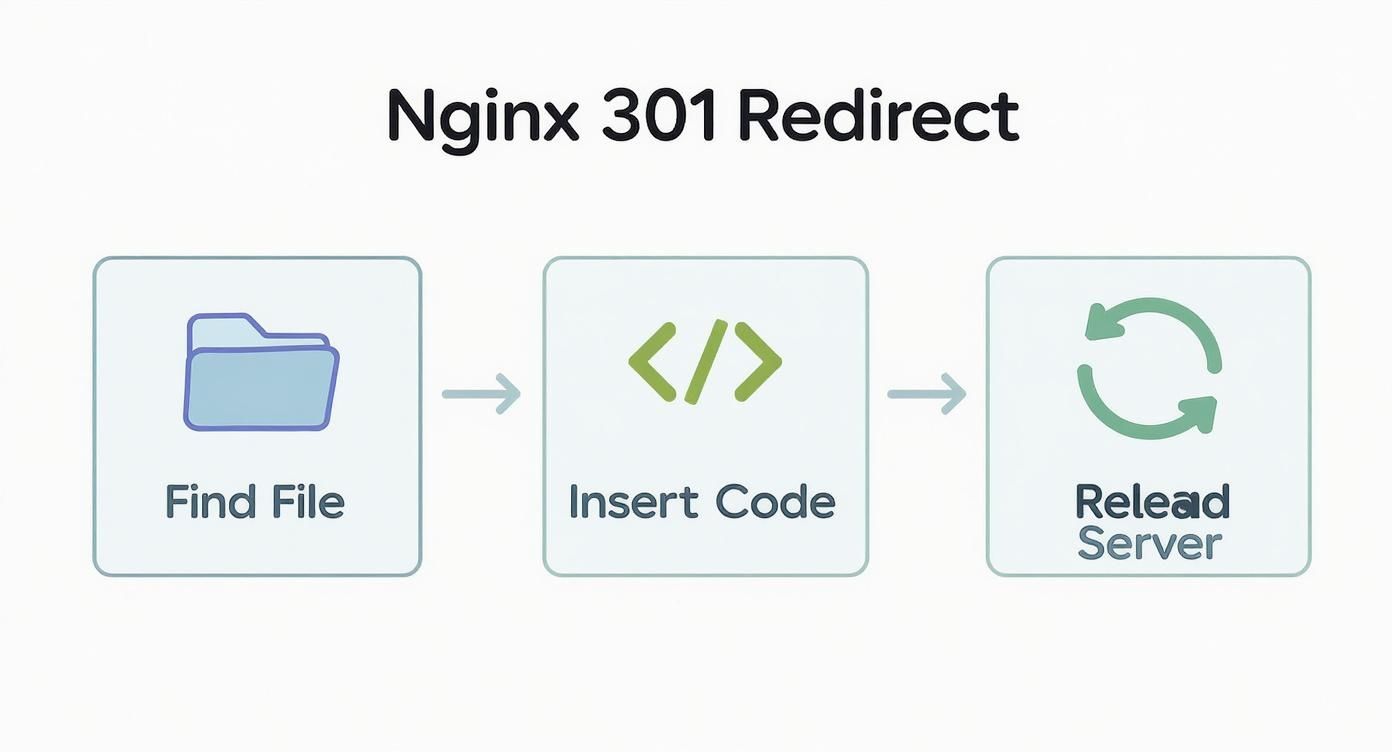
While the flowchart above shows the server-side process for Nginx, the core idea is the same everywhere: find the right spot, add your rule, and let the system take over.
A 301 redirect is more than a technical command. It’s a promise to your visitors that you’ll get them where they need to go, and it's a signal to search engines that you value the authority you've built.
Research on URL optimization drives this point home. Studies have shown that URLs matching a user's search query can see a 45% higher click-through rate. A 301 is what preserves that value when a URL has to change. And with Chrome users spending over 93% of their time on HTTPS sites, using redirects to enforce a secure connection is non-negotiable for user trust. You can dive into the complete research on how URL structure impacts SEO to see just how critical these details are.
Ecommerce Redirects on Platforms Like Shopify
For anyone running a store on a platform like Shopify, redirect management is baked right into the admin panel. No code, no plugins, no fuss.
When you change a product or collection URL, Shopify will automatically prompt you to create a redirect from the old address. You can also add them manually by navigating to Online Store > Navigation > URL Redirects. This kind of built-in functionality is a lifesaver for store owners, letting them protect their SEO and customer experience without needing to be a developer.
Finding and Fixing Common Redirect Errors
Putting a 301 redirect in place is a solid first step, but the job isn't truly done until you've made sure it works perfectly. A wonky redirect can quietly tank your SEO, frustrate users, and send confusing signals to search engine crawlers. The good news? You already have some powerful diagnostic tools built right into your web browser.
Your first line of defense is the Network tab in your browser's developer tools. Just hit F12 (or Cmd+Option+I on a Mac) to pull it up. Once it's open, pop the old URL into the address bar and press enter. You're looking for a clear sequence: the old URL should show up with a 301 status code, immediately followed by the new URL with a clean 200 status code. This is the quickest way to confirm your redirect is firing correctly as a permanent move.
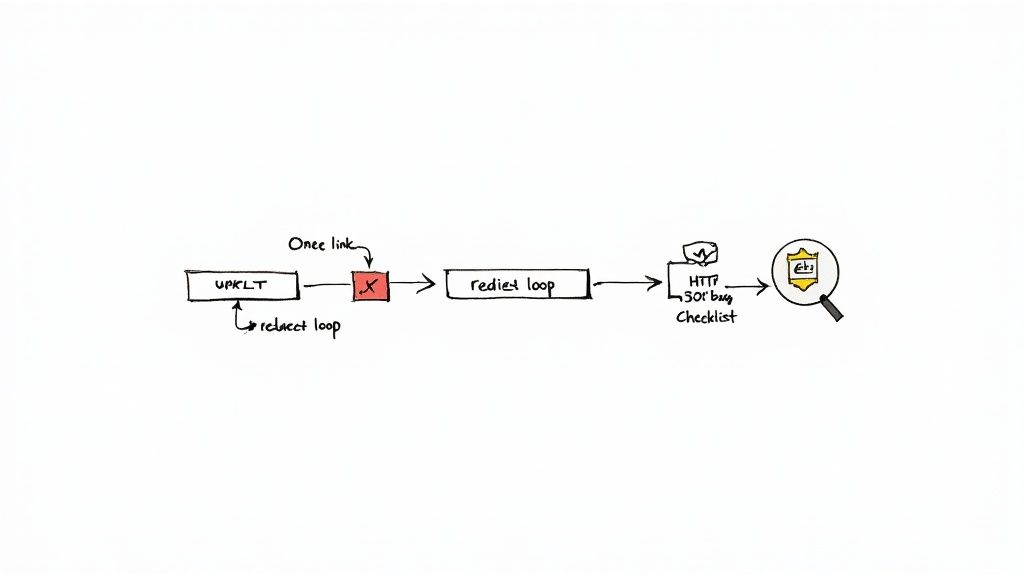
Unraveling Redirect Chains
One of the most common hiccups I see is the redirect chain. This is when one URL points to a second, which then points to a third, and maybe even a fourth. Think of it like Page A -> Page B -> Page C.
While your visitors might eventually land on the right page, every single "hop" in that chain slows things down and eats up your crawl budget. If a chain gets too long, search engine bots will simply give up and move on.
Thankfully, the fix is pretty straightforward:
Use a redirect checker tool to map out every step in the chain.
Jump into your configuration and change the very first redirect (
Page A) so it points directly to the final destination (Page C).This cuts out the middleman, creating a single, efficient redirect that's better for everyone.
Escaping the Dreaded Redirect Loop
A much bigger headache is the redirect loop. This is when a URL redirects back to itself, or to another page that eventually points back to the start (Page A -> Page B -> Page A). This creates an infinite cycle, and browsers will throw up their hands with an "ERR_TOO_MANY_REDIRECTS" error, making the page totally inaccessible.
A redirect loop is a critical showstopper. It means nobody—not users, not Google—can see your content. This is usually caused by conflicting rules, maybe in your
.htaccessfile, a rogue plugin, or a server setting gone wrong. You'll need to carefully review all your redirect rules to pinpoint and eliminate the circular logic.
Using Google Search Console to Spot Problems
Beyond checking things manually, Google Search Console is an absolute must-have for hunting down redirect issues proactively. Head over to the "Pages" report (what used to be the Coverage report). It will flag any problems Google's crawlers have run into, including redirect errors. You'll want to keep a close eye on this, especially after a big site migration or any major URL changes.
The data in Search Console gives you the clues, but a deep dive into your analytics can tell the full story. If you've just rolled out some redirects and see a sudden traffic drop to a specific page, that's a major red flag. Learning how to analyze website traffic helps you connect the dots between your redirect implementation and actual user behavior.
Fixing broken redirects is crucial, but running a comprehensive SEO site audit on a regular basis can help you spot these kinds of problems before they do any real damage. It’s also worth noting that some advanced strategies use redirects for link building. For instance, about 19.9% of these tactics involve redirecting an expired domain to a new site to capture its backlink profile. It can be a powerful move, but it's risky—if the old domain had a penalty, you could inherit it. This just goes to show how important careful testing and implementation really are.
Your 301 Redirect Questions, Answered
Once you get the hang of setting up 301 redirects, a few practical questions almost always come up. Here are some straightforward answers to the things I get asked most often by website owners and SEOs.
How Long Should I Keep a 301 Redirect in Place?
The simple, honest answer? Forever.
Seriously. Think of a 301 redirect as a permanent mail forwarding address for your website. As long as there's any chance someone has the old page bookmarked, or another website is linking to that old URL, the redirect needs to be there to guide them to the right place.
Search engines can take a surprisingly long time—sometimes months—to fully process the change and pass all the authority from the old URL to the new one. If you remove the redirect too soon, you're essentially taking down the "We've Moved!" sign. Any traffic or link equity hitting that old address will just run into a 404 error, and all that value vanishes.
Will a Bunch of 301 Redirects Slow Down My Site?
A single, direct 301 redirect adds a tiny, almost unnoticeable delay. It's a quick server-side handoff. Having hundreds, or even thousands, of clean redirects pointing from an old URL directly to a new one isn't going to be a performance bottleneck.
Where you really get into trouble is with redirect chains. This happens when one URL redirects to another, which then redirects to a third (or fourth, or fifth...). For example, Page A -> Page B -> Page C. Each one of those "hops" is a separate request that adds latency, which absolutely can slow your site down and frustrate both users and search crawlers.
Redirect chains are silent killers of user experience and crawl efficiency. It’s a critical best practice to periodically audit your site to find and flatten these chains, ensuring every old URL points directly to its final destination.
Does a 301 Pass All the Link Equity?
Yes, it does. In the past, there was a long-standing myth that a 301 redirect resulted in a small loss of "link juice." However, Google has been clear for years now that 30x redirects, including 301s, pass the full PageRank value of the original page.
This means you can move forward with site migrations, URL updates, and content consolidation without worrying about losing the authority you’ve worked so hard to build. The key is making sure the redirect is done right and the new page is a good match.
You just need to ensure two things:
It’s a proper 301: The redirect has to be a true server-side 301.
The destination is relevant: The new page should be the best possible replacement for the old content.
When Should I Use a 410 Redirect Instead?
A 301 redirect says, "This page has moved." A 410 "Gone" status code says, "This page has been deleted on purpose, and it's never coming back." It’s a much more permanent and decisive signal than a 404 "Not Found."
So, when do you pull out the 410?
When you've permanently deleted content that has no relevant replacement on your site.
If the page was thin, low-quality, had no traffic, and no valuable backlinks.
When you’re intentionally pruning old, irrelevant content to improve the overall quality of your website.
Using a 410 can actually help you clean up your site’s index in Google a bit faster than a 404. It tells search engines to stop wasting their crawl budget looking for a page you know for a fact is gone for good.
Ready to build a website that's as smart as it is beautiful? With Alpha, you can use AI to generate a stunning, SEO-optimized site in hours, not weeks. Stop wrestling with complicated builders and start creating with the power of AI. https://www.alpha.page
Build beautiful websites like these in minutes
Use Alpha to create, publish, and manage a fully functional website with ease.