How to Create Website Mockups People Actually Love
Learn how to create website mockups that bridge the gap between idea and reality. Our guide covers tools, principles, and developer handoff.

EXAMPLES
Build beautiful websites like these in minutes
Use Alpha to create, publish, and manage a fully functional website with ease.




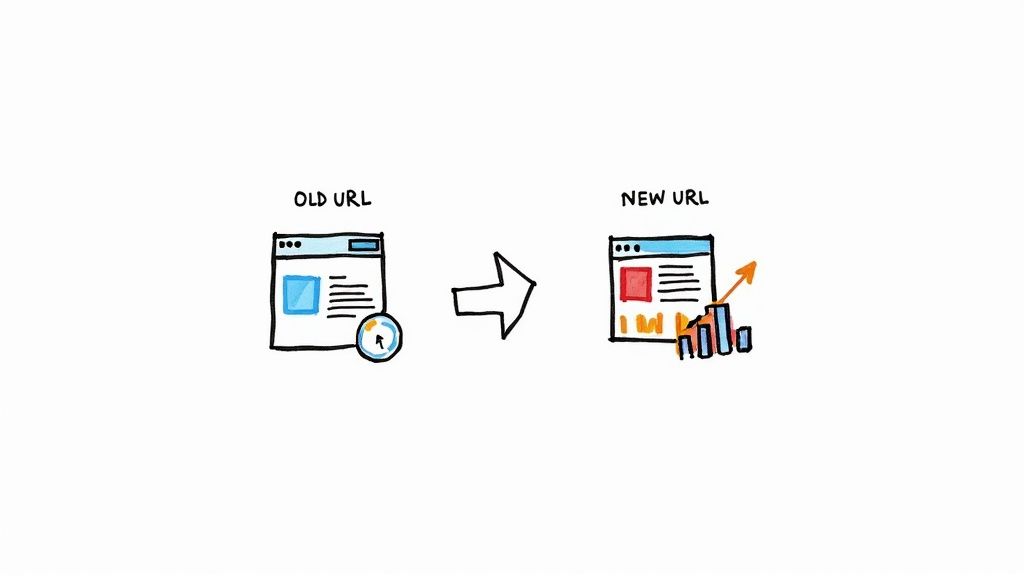
Think of a 301 redirect as a permanent change-of-address form for your web pages. You're telling browsers and search engines, "Hey, this page you're looking for isn't here anymore—it has moved for good to this new location." It's an essential tool that automatically forwards both your visitors and, just as importantly, your SEO value from the old URL to its new home.
Why 301 Redirects Are a Non-Negotiable for SEO
Before we get into the nuts and bolts of setting one up, let's talk about why you can't afford to ignore them. A 301 redirect is a cornerstone of technical SEO. It's the bridge that carries your hard-earned authority across when a URL changes. If you skip this step, you’re basically telling Google to throw away years of your work.
Here’s a common scenario I've seen play out: You have a killer blog post that’s ranking on page one and has earned a bunch of great backlinks. You decide to update the URL slug to make it more descriptive, but you forget to add a redirect. Suddenly, all those valuable links point to a dead end—a 404 error page. Not only does this create a terrible experience for your visitors, but it tells search engines your site is broken, which can absolutely tank your rankings.
Keep Your Link Equity and Authority Intact
The biggest SEO win from a 301 redirect is that it preserves your link equity. When another site links to your page, it passes along a bit of its authority, often called "link juice." A 301 redirect makes sure nearly all of that value gets transferred from the old URL to the new one. You don't have to start from square one. This is critical for everything from massive site migrations to simple content pruning.
Think of it this way: a proper 301 redirect ensures all your important mail gets forwarded to your new address. Without it, your most valuable SEO assets get lost in the void.
Create a Better Experience and Build Trust
Let's face it, nobody likes a broken link. When someone clicks a link expecting to find what they need and instead hits a "Page Not Found" error, it's frustrating. Their trust in your site takes a hit, and that poor experience can lead to higher bounce rates—a signal that can hurt your search rankings over time.
A smooth, seamless redirect changes the whole story:
No more dead ends: Visitors land on the right page automatically, without even noticing the switch.
Trust is maintained: The user's journey is uninterrupted, reinforcing that your site is professional and well-maintained.
Confusion is eliminated: It stops people from assuming your content is gone or that your website is out of date.
Getting this right is a fundamental part of learning https://www.alpha.page/blog/what-is-search-engine-optimization and seeing how all the different elements work together. To dig deeper into how redirects fit into the bigger picture of site health, check out these essential technical SEO best practices.
Setting Up Redirects with .htaccess on Apache

If your website runs on an Apache server—and a huge chunk of the internet does—your best friend for handling redirects is a little file called .htaccess. This is a powerful server configuration file that lives in the root directory of your website. It lets you lay down the law for how the server should behave, and setting up a 301 redirect is one of its most common jobs.
Even though it sounds technical, using .htaccess for basic redirects is surprisingly simple. You're essentially just writing a list of instructions for the server to follow whenever someone tries to access a URL on your site.
But before you dive in, let me share a lesson learned the hard way: always back up your original .htaccess file before you touch it. I can't stress this enough. A tiny typo or syntax mistake can trigger a "500 Internal Server Error" and bring your entire site down. Just download a copy to your desktop first. It’s a two-second task that can prevent a major crisis.
You can usually find and edit this file through an FTP client or the file manager in your hosting account. If you're a bit fuzzy on those tools, our guide on what is website hosting offers a good primer on finding your way around your site's backend.
Redirecting a Single Page
This is the redirect you'll probably use most often. Maybe you've updated a blog post with a better URL, renamed a product page, or combined two articles into one definitive guide. The goal is simple: make sure anyone who lands on the old URL gets sent straight to the new one.
To get this done, just open your .htaccess file and add this line right at the top:
Redirect 301 /old-page-url.html https://www.yourdomain.com/new-page-url/
Here’s a quick breakdown of what that command is doing:
Redirect 301: This tells the server to execute a permanent redirect./old-page-url.html: This is the old page's path, starting right after your domain name. Notice you don't include the fullhttps://www.yourdomain.compart here.https://www.yourdomain.com/new-page-url/: This is the full, absolute URL of the new page where you want to send people.
I've seen a lot of people make the mistake of using a relative path for the new URL. Always use the full, complete destination URL. It leaves no room for error and prevents the server from getting confused and creating a dreaded redirect loop.
Forcing a Secure HTTPS Connection
These days, an SSL certificate and a secure https connection are table stakes for any serious website. Once you've got your SSL set up, you need to make sure every visitor who types in or clicks a link to the http version of your site is automatically forwarded to the secure https version.
For this, we need to use Apache's mod_rewrite module, which is a bit more advanced but incredibly powerful. Add the following snippet to your .htaccess file to make sure your entire site is served over HTTPS:
RewriteEngine On RewriteCond %{HTTPS} off RewriteRule ^(.*)$ https://%{HTTP_HOST}%{REQUEST_URI} [L,R=301]
This code is a neat little package. It first turns on the rewrite engine. Then, it checks if the incoming connection is not secure (HTTPS off). If it finds an insecure connection, it rewrites the URL to use https and issues a permanent 301 redirect. Once this is in place, you can be confident that all your traffic is secure.
If your site is running on an Nginx server, you'll find that setting up a 301 redirect is just as powerful as using .htaccess on Apache, though the approach is quite different. Nginx handles redirects directly in its server configuration files, commonly known as server blocks. This method is a big reason Nginx is famous for its performance, making it the go-to choice for many high-traffic websites.
https://www.youtube.com/embed/uVIxeCLBEgo
Personally, I find working with Nginx server blocks to be a more direct process. It feels less fragile than .htaccess, where a single misplaced character can bring down your entire site. Still, you're editing core configuration files, so caution is key. You'll typically find these files in directories like /etc/nginx/sites-available/ or /etc/nginx/conf.d/.
Finding and Editing Your Server Block
First things first, you need to track down the right configuration file for your domain. If you host multiple sites, each one will likely have its own file. Once you've located it, open it up using a command-line editor like nano or vim.
Inside this file, you'll be looking for the server { ... } block. This is the heart of your site's configuration, and it's where we'll add the redirect rules. The cleanest and most efficient way to create a permanent redirect in Nginx is with the return 301 directive. It's simple and does exactly what it says on the tin.
Practical Nginx Redirect Examples
Let's walk through a couple of real-world scenarios. These little code snippets should be placed inside your main server block to get the job done.
Redirecting a Single Page
This is probably the most frequent redirect you'll set up. Say you've updated a blog post and changed its URL. You'll need a location block that matches the old URL perfectly.
location = /old-blog-post { return 301 https://www.yourdomain.com/new-and-improved-post; }
Redirecting an Entire Directory
What if you've reorganized your site structure? For instance, maybe you've moved everything from a /services/ folder to a new /solutions/ directory. This rule will catch any request for the old folder and send it to the right place.
location /services/ { return 301 https://www.yourdomain.com/solutions/$request_uri; }
Expert Tip: One of the best features of Nginx is its built-in configuration test. Before you ever push your changes live, save your file and run
sudo nginx -tin the terminal. This simple command checks your syntax and will save you from a world of headaches.
Applying Your Changes without Downtime
Once nginx -t confirms your configuration is valid (it will say the syntax is ok and the test is successful), you're ready to go live. The great thing here is that you don't need to do a full restart, which would cause a brief blip in service.
Instead, you can just ask Nginx to gracefully reload its configuration with this command: sudo systemctl reload nginx. This tells the server to adopt the new rules without dropping any active user connections. It's a completely seamless update.
Of course, the final step is to pop open a browser and test the old URLs yourself. Make sure they redirect exactly where you expect them to go.
Using WordPress Plugins for Easy Redirects
For the millions of us running sites on WordPress, digging into server code isn't always the best or safest option. Thankfully, you don't have to. A good plugin can turn the technical task of setting up a 301 redirect into a simple point-and-click process right from your dashboard.
This is hands-down the most user-friendly way to go. It completely sidesteps the risk of that dreaded "white screen of death" from a tiny typo in a server file.
Think about common scenarios: you've just updated an old blog post's URL to be more SEO-friendly, or you're merging two similar articles into one definitive guide. Instead of FTPing into your server, you just log into WordPress, open the plugin, and set up the redirect in seconds.
Getting Started with a Redirect Plugin
If you're looking for a solid recommendation, the Redirection plugin is a crowd favorite for a reason. It's been my go-to for years—it's powerful, reliable, and surprisingly easy for newcomers to pick up.
Getting it running is just like adding any other plugin:
Go to Plugins > Add New in your WordPress dashboard.
Search for "Redirection."
Click Install Now, then Activate.
Once it's active, you'll find its settings under the Tools menu. The interface for adding a new redirect is incredibly straightforward.
You just drop the old, broken URL into the "Source URL" field and the new page you want it to go to in the "Target URL" field. The plugin takes care of the rest.
Pros and Cons of Using Plugins
The biggest win here is simplicity. You don't need to know anything about .htaccess files or Nginx server configurations. This makes essential site maintenance accessible to everyone, not just developers. Many plugins also come with bonus features, like 404 error monitoring, which is a fantastic way to catch and fix broken links you might not even know exist.
But there is a trade-off to consider. Every plugin you add to your site introduces a little bit of overhead, which can sometimes have a minor impact on performance. That's why it's so important to stick with well-coded, reputable plugins and always keep them updated. An outdated or poorly built plugin can become a security risk or clash with your theme.
Here's where a plugin really shines: large-scale site migrations. A study found that sites using automated tools for bulk redirects had a 35% higher success rate in preserving SEO value compared to doing it all by hand. This approach cut the average migration time for a 10,000-URL site from 14 days down to just 2.5 days. You can find more details on how automated tools improve site migrations on rapid301.com.
For the vast majority of WordPress site owners, the convenience and extra features of a quality redirect plugin are well worth it. It’s a reliable, manageable solution for handling 301 redirects without ever having to leave your WordPress admin area.
Advanced Redirect Strategies and Common Pitfalls
Once you've gotten the hang of a basic 301 redirect, you're ready to tackle more complex situations. Moving beyond one-off page fixes is where you can really make an impact, but it's also where small mistakes can start to cause big SEO headaches if you're not careful.
This is especially true when you're making site-wide changes, like reorganizing a whole blog category or shifting your entire site to a new URL structure. Can you imagine redirecting hundreds of pages by hand? It would be a nightmare, not to mention a recipe for typos and errors. This is where you bring in the heavy hitters, like regular expressions (regex), to create powerful, pattern-based redirect rules.
This infographic gives you a high-level look at the process, often handled with a simple WordPress plugin, which saves you from digging into server files.

Essentially, you install a tool, tell it the old URL and the new one, and hit save. The redirect is live.
Sidestepping Redirect Chains and Loops
One of the sneakiest and most damaging mistakes I see is the redirect chain. This is when Page A points to Page B, which then turns around and points to Page C. Each one of those "hops" bleeds a little link equity and, just as importantly, adds precious milliseconds to your page load time for users and search crawlers.
Your goal should always be a single, direct jump from the old URL to its final, new home. After you set up your redirects, go back and update your internal links to point directly to the new pages. It's a bit of digital housekeeping that pays off big time in site speed and SEO performance. Learning how to manage these is just as important as knowing how to fix broken links and 404 errors to keep your site in top shape.
A rock-solid redirect strategy can drive incredible results. Look at Nuclear Blast, a music e-commerce store that had to redirect over 15,000 URLs during a site migration. They painstakingly mapped every old page to a new one and were rewarded with a 227% year-over-year increase in organic traffic. It’s a perfect example of how a well-planned 301 redirect strategy doesn’t just preserve your SEO—it can unlock serious growth.
These principles are critical whether you're working on one domain or several. Redirecting content is a different beast than making the DNS-level adjustments involved when you learn https://www.alpha.page/blog/how-to-create-a-subdomain for a new project. No matter the scenario, always test your redirects to make sure they’re a clean, single-step process.
Common Questions About 301 Redirects
Even when you know the technical steps, a few lingering questions always seem to pop up when implementing redirects. Getting these details right is what separates a smooth, SEO-friendly transition from a traffic-killing headache. Let's dig into some of the most common questions I hear from people managing their websites.
These are the practical, real-world uncertainties that can trip you up. Getting clear on them will help you make much better strategic decisions for your site.
How Long Should I Keep a 301 Redirect Active?
The simple, safe answer? Forever. I know that sounds like a long time, but there's a good reason for it.
Search engines don't update their indexes overnight. It can take months for them to fully discover, crawl, and transfer all the authority from an old URL to its new home. At the absolute bare minimum, you need to keep a 301 redirect in place for at least one full year.
Cutting it off too soon is one of the most common and costly mistakes you can make. You risk losing all the link equity you were trying to save. Plus, think about all the old links pointing to that page from other websites—those might exist for years. Keeping the redirect active ensures you continue to capture that valuable referral traffic and that users never hit a frustrating 404 error page.
What’s the Difference Between a 301 and a 302 Redirect?
This is probably the single most important distinction to understand. Getting this wrong can completely undermine your SEO efforts.
Here’s the breakdown:
A 301 redirect is for a permanent move. It’s your way of telling search engines, "Hey, this page is gone for good. Please pass all of its ranking power and link authority over to this new URL."
A 302 redirect is for a temporary move. It says, "This page is just over here for a little while, but the original URL is still the main one, so don't change your records."
Using a 302 when a page has moved permanently is a massive SEO blunder. It effectively tells search engines not to transfer the link equity, forcing your new page to start building authority from scratch.
It's not just about what you can do, but what you should do. For example, it might seem easy to redirect a deleted product page to your homepage, but Google usually sees this as a "soft 404." Why? Because the homepage is rarely a relevant substitute. Almost no SEO value gets passed. Always, always redirect to the most topically similar page you have.
How Can I Check if My Redirect Is Working Correctly?
Never just assume your redirect is working. You have to verify it. Trust me, it's a simple step that can save you from major issues down the road.
The easiest method is to use a free online redirect checker. Just pop your old URL into the tool, and it will trace the path.
A successful check will clearly show a 301 Moved Permanently status code and land on the correct destination URL. These tools are also your best friend for spotting and fixing redirect chains—where one URL redirects to another, which then redirects to a third. Those chains can seriously slow down your site and dilute your SEO value.
Ready to build a website that's optimized for success from day one? Alpha uses AI to help you create a stunning, professional site in hours, not weeks. Our platform includes built-in SEO tools to ensure your online presence starts strong. Try it now at https://www.alpha.page.
EXAMPLES
Build beautiful websites like these in minutes
Use Alpha to create, publish, and manage a fully functional website with ease.